Apple’s latest iOS update is out today and with it comes some new customization options for the Home Screen on your iOS device. For the first time ever, Apple is allowing its users to change the icon size, as well as tint them. Here’s how to use the new features:
Activate Jiggle Mode
On your iPhones Home Screen, press and hold on a blank area to activate jiggle mode. Alternatively, you can long press on an app and tap Edit Home Screen. Virtually every customization you do to your Home Screen is going to start with jiggle mode, so get ready to watch your icons dance! 🕺💃
Edit
In jiggle mode, you’ll see an Edit button in the upper left corner— tap it. This brings up a list of things you can edit on the Home Screen. I’ll have tutorials for these coming out soon. Today, we’re gonna focus on Customize. Just tap customize to bring up the customization panel.
Customization Options
This panel is where all of your icon customization will take place. Here’s a quick rundown of the tools:
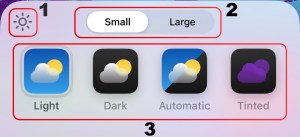
- Tap here to darken or lighten your wallpaper, regardless of if you’re using light or dark icons.
- Use this selector to switch between small and large icons. Small icons display the app name underneath while large icons do not.
- These buttons are used to switch between Light, Dark, Auto Light/Dark, and Tinted icons. Note that when selecting tinted, an eyedropper tool will appear to the right of the small/large switch. You can use this to pick a color from your wallpaper for your app icons.
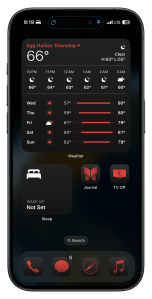
Here’s a bonus tip: Use a black wallpaper with a red tint to make your Home Screen extra easy on the eyes at night!
Are you a fan of Apple’s new icon tinting feature, or were you hoping it would be a bit more like what Android has on offer? Sound off down in the comments below to keep the conversation going!

 Dan Stransky