I’ve written before about my love of third-party Apple Music client Marvis Pro and I recently found a way to take further advantage of the customizability of the app that I love so much.
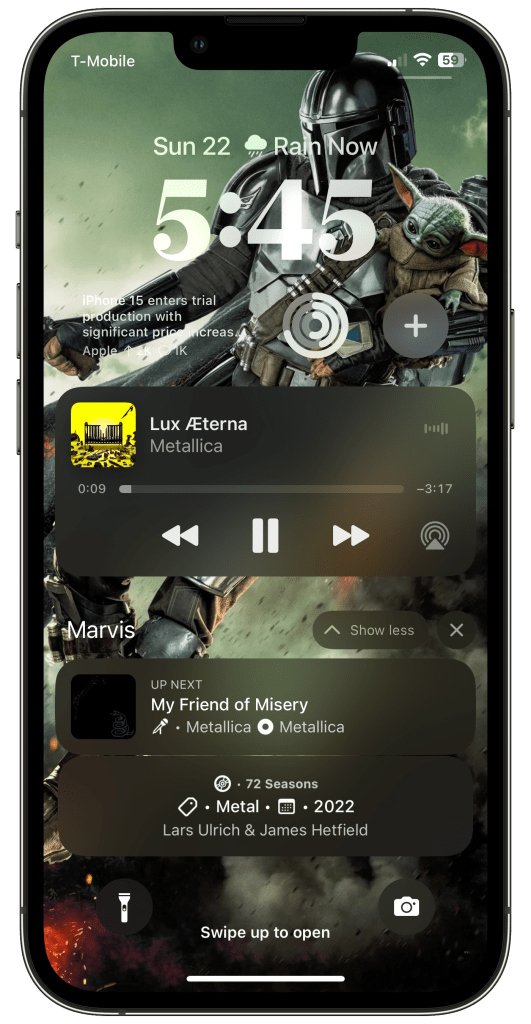
One of the iOS features that Marvis allows you take advantage of is Live Activities. Currently, the app supports two styles: Now Playing and Up Next. Naturally, when Live Activity support came to the app, I immediately added an Up Next one, as I find that’s a very valuable piece of information to have.
I tended to stay away from the Now Playing one, as that seemed a bit redundant to me, considering iOS automatically shows you Music controls on the Lock Screen. The other day I was driving home from running some errands and had a thought: what if I customize that Now Playing activity to something more useful. So that’s what I did.
A few notes before I get into my Now Playing setup:
- The reason I have these ordered this way is because on my iPhone 12 Pro these Live Activities stack, since they are both from the same app. More often than not, if I want to see one of these Live Activities this is the one I am going to see.
- It’s been a while since I set the Up Next Live Activity up. I can’t remember for sure if that was the stock configuration or not, but I don’t believe I modified that one. I’ll save that for another day.
Now Playing
In terms of my Now Playing Live Activity, I decided that I wanted it to give me more information regarding what’s currently playing. For as nice as Apple’s music controls are, they don’t give you much more information about a song than the title, artist, and album art.
For this Live Activity I decided the first thing I wanted was the album name. Sometimes, especially when I’m listening to stations or playlists to discover new music, I’ll come across an album that doesn’t have the title in the art. Having this information up here makes it easy to see without having to go into the music app. I also added a disc symbol before it to remind me that’s the album title.
On the second row, I wanted to throw a bit more relevant information that I could see myself wanting to know. I decided to go with a few more pieces of song metadata: genre and year. I added a tag symbol before the genre and a calendar before the year, again as a visual reminder of what these random pieces of data mean. I also added like status to this row, as I’d like an easy way to see visually if this song is liked or not. It’s worth noting that I went with year and not year (album) as I’ve noticed that on compilations those can be two vastly different dates.
For the third row, I actually was’t sure what I wanted to put here so I went head and just put the composer credits for the song, as I figure sometimes that’s a piece of metadata that can uncover something cool you never knew.
That’s what I’m using for my Live Activity setup with Marvis Pro. Which ones are you using? Tell me about them down in the comments below!

 Dan Stransky
One thought on “Using Marvis Pro’s Live Activities for an Even Better Apple Music Experience”