As the bird site continues to get worse and worse, I’ve found myself diving into Mastodon more and more. Being a decentralized social network means some of the recent events we’ve seen unfold with Twitter are incredibly unlikely, if not impossible, to happen with the elephant site. Unfortunately, despite being around for a few years, Mastodon is really just starting to grow, which means that app makers are having to quickly pivot from their fully featured, long-standing Twitter apps, to getting usable Mastodon apps out the door. This means that some features are being prioritized over others in a lot of cases, you may not necessarily be able to find just one app for Mastodon (at the moment) that meets all of your needs.
Currently, I’m running a combination of the official Mastodon iOS app as my main interaction with the service, while I generally browse my lists on the test flight of an app called Woolly, from_Fenix for Twitter_ developer Matteo Villa. The reason this app is on my Home Screen and getting such mileage right from the jump from me is because despite being a very early beta, the app already has solid integration for accessing and browsing your lists. When Tapbot’s upcoming client Ivory gets out of beta, I’m very excited to take that for a spin as well, as I became a fan of TweetBot over the course of the last few months, before all hell broke loose with Twitter.
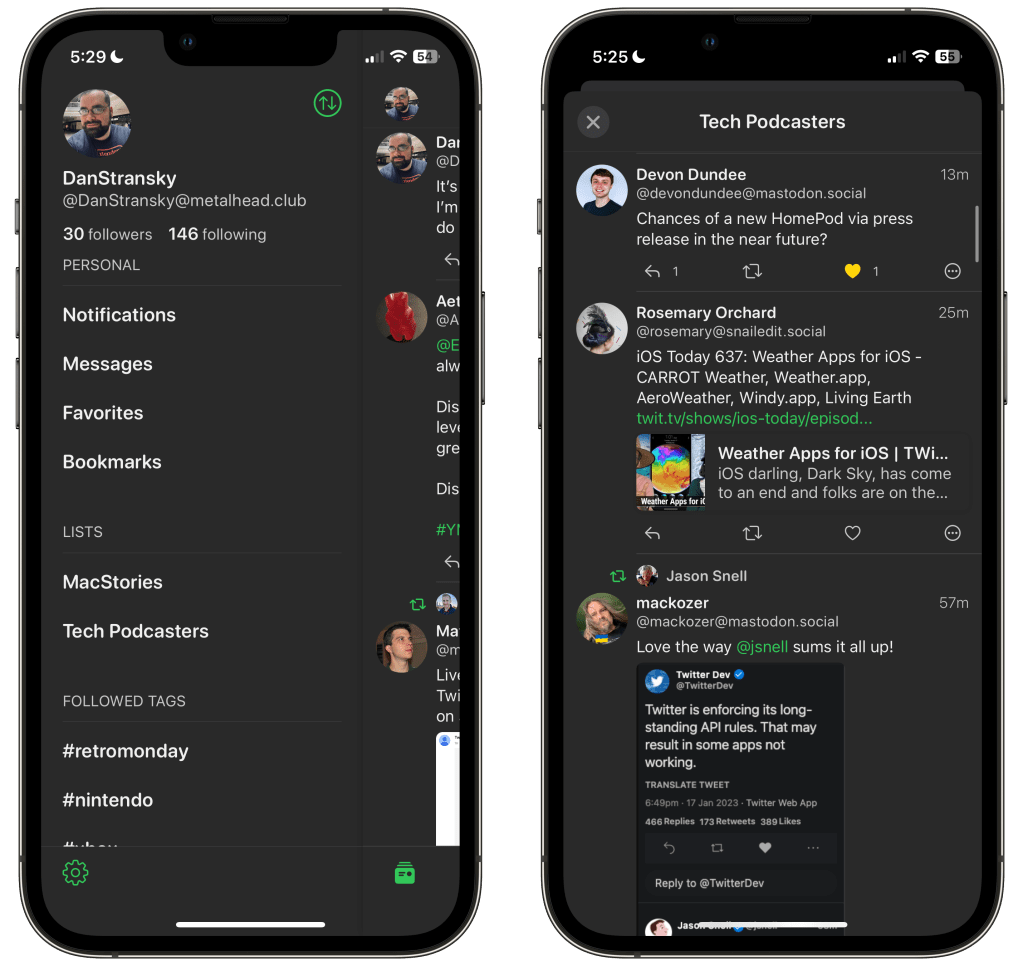
Today I want to help you get started on your Lists on Mastodon journey. First I’m going to show you how to make a list directly from the site, then I’m going to create the same list with an online tool that was shared with me the other day that’s really, really cool if you ask me.
Creating Lists on Mastodon
1 – Once you’re signed into Mastodon on whatever instance you signed up with, you’re going to see the word Lists in the side bar. Click on that.

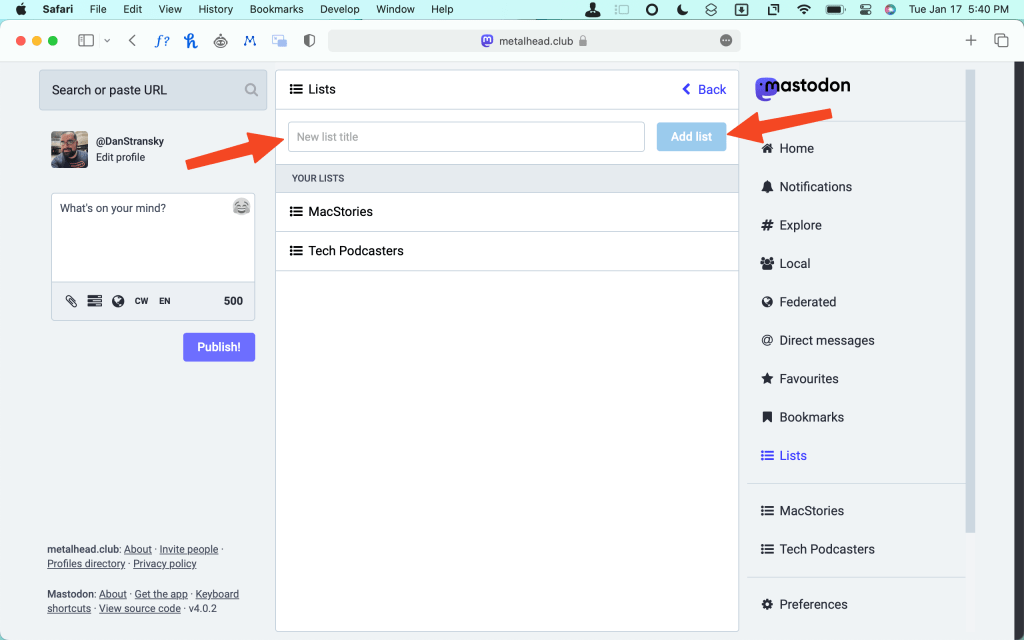
2 – From there, you’ll see a box that says New List Title. Enter the title for your list and then click the button that says Add List. This adds the list to the section that says Your Lists. Go ahead and click on the list that you just made.
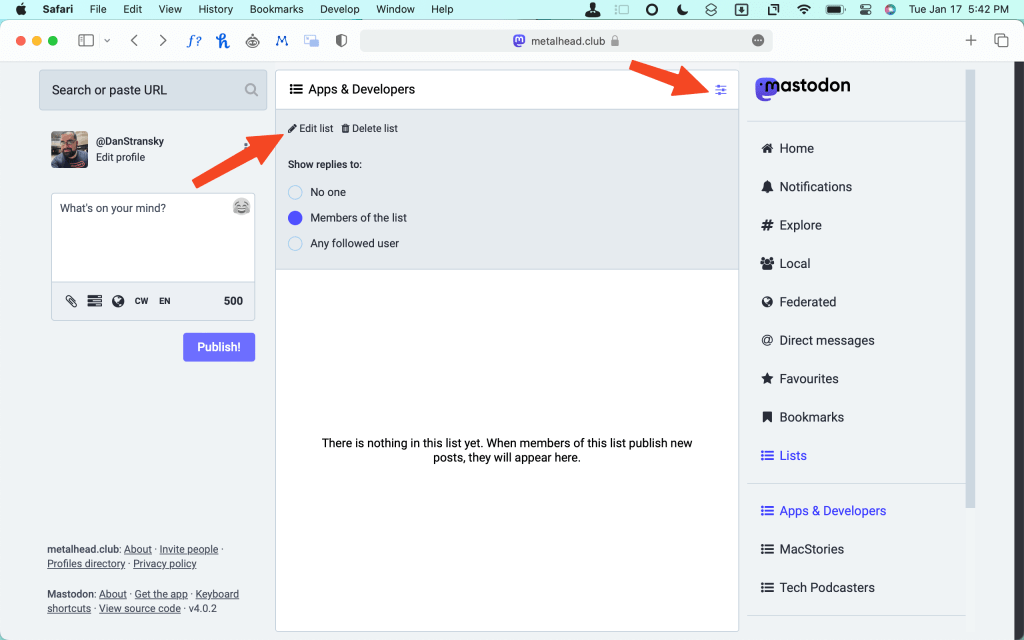
3 – From here, you’re going to want to click the tiny Settings button on the top right corner of the list. This will bring up reply settings, as well as buttons to Edit List and Delete List. Click on Edit List.
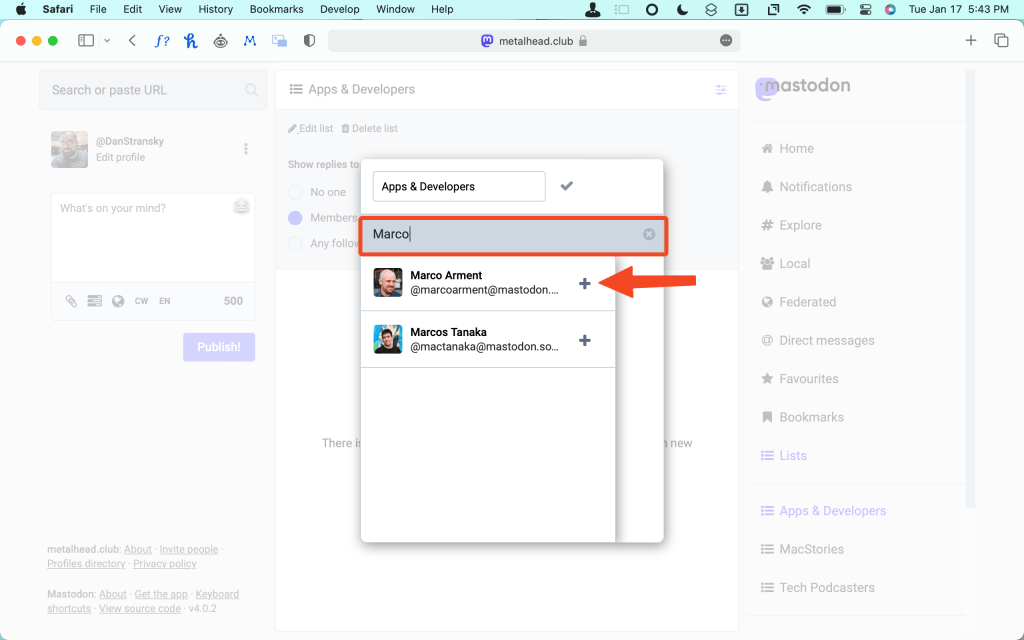
4 – In the box that pops up, you have to MANUALLY search for each user that you follow that you want to add to the list and hit Enter/Return on your keyboard. In this case, I searched for “Marco” to add Marco Arment (developer of Overcast to the list.) Luckily this also gave me Marcos Tanka (MusicHarbor, Play, MusicBox).
At this point my patience is gone. Let’s delete this list and do this in a way that’s better. Much better!
Creating Lists With Mastodon List Manager
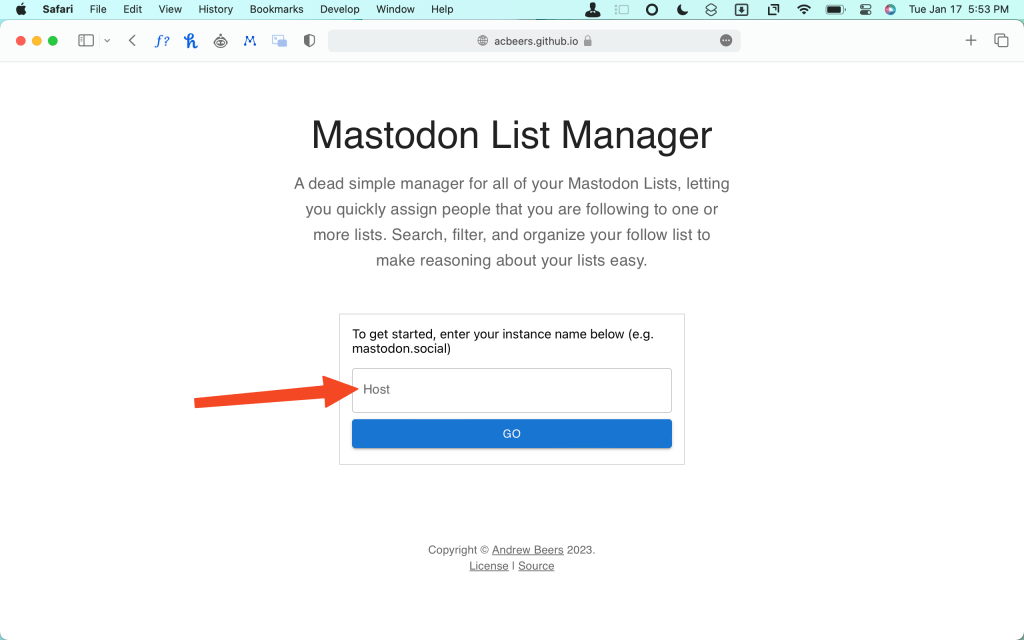
For this tool we’re going to use a web app called Mastodon List Manager.
First off, you just need to sign into your Mastodon account. It’ll ask you for your host name. This is whatever instance you signed up with. In my case, that’ll be metalhead.club and then just click Authenticate. You’ll be taken to the Mastodon authorization screen. Click Authorize.
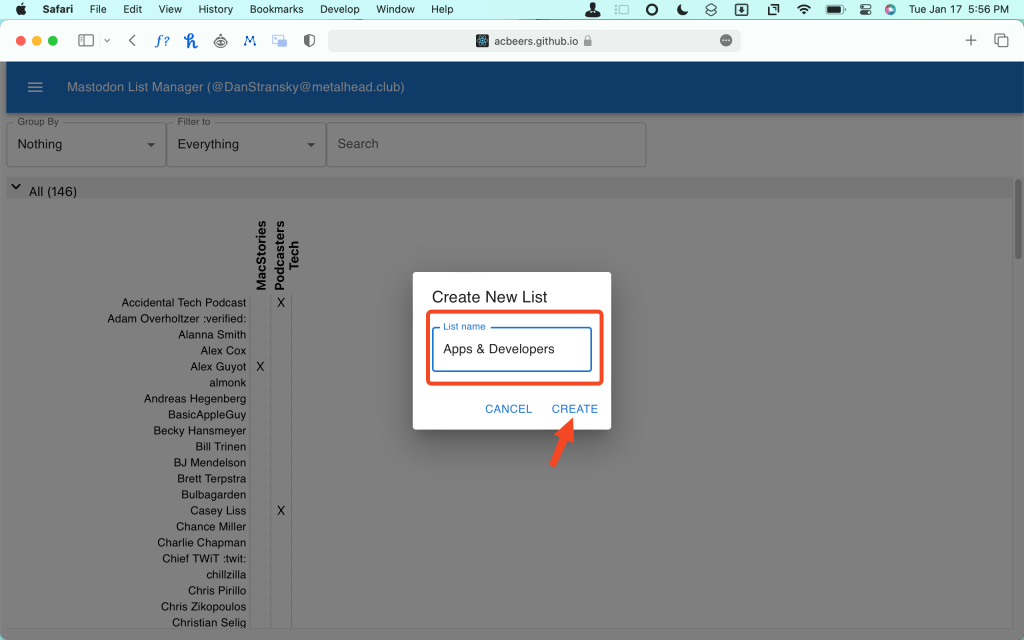
Now the UI here is going to seem a little strange, but bear with me. On the top left of the screen, click the Hamburger Menu and then New List. In the box that pops up, enter your list name and then click Create. Please note: this site is a tad sluggish here (which I learned trying to do this on my iPhone the other day.) After you click create, just give it a few seconds to do what it needs to do. Trust the Process. If not, you’re going to wind up with three or four identical new lists.

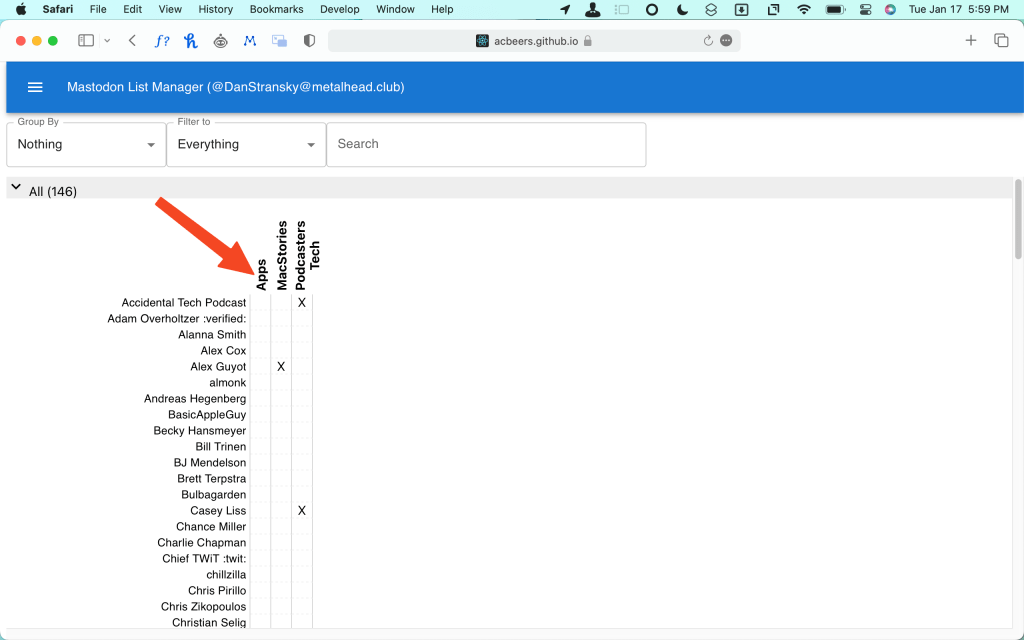
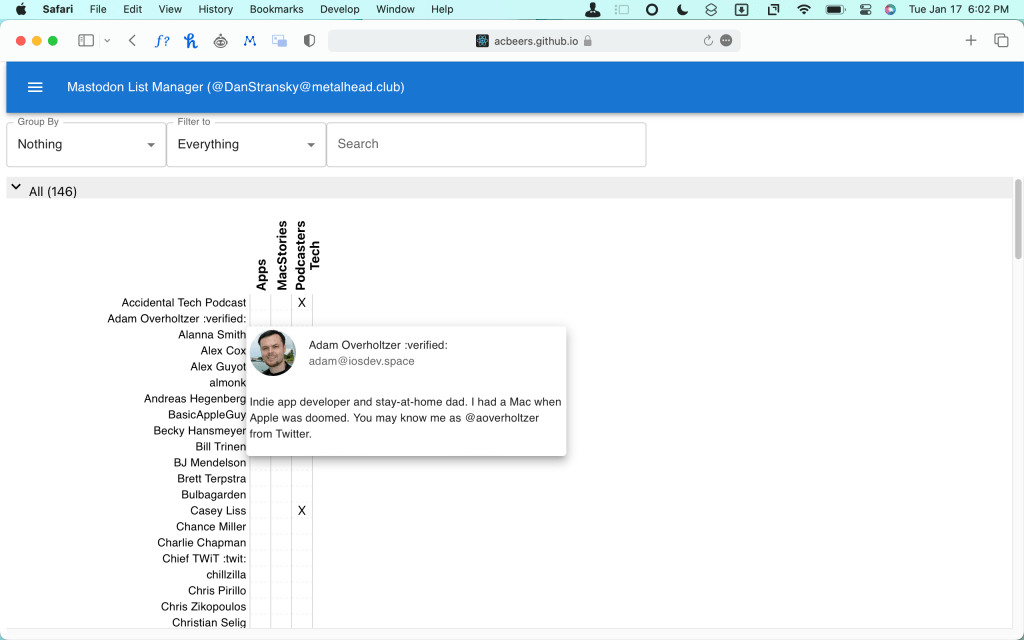
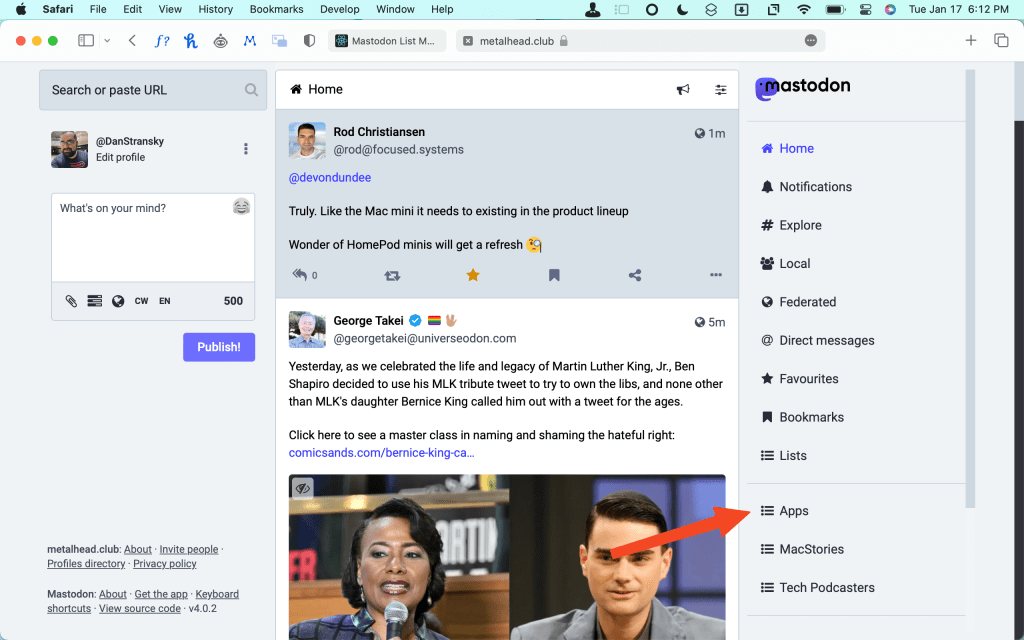
Once your list is created, just find the column that has the list name you want, which in my case is Apps. Just scroll down the alphabetical list of accounts you follow and click the square in the row for the list you want to add them to. That’s it. That’s all there is! Pro Tip: Hovering over any name in this list will let you see their bio if you’re not 100% sure they’re someone you want to add to a specific list or not.
Notes
- I did notice that when I went to Mastodon to check the list, the name was truncated to just Apps. I’m not sure if that’s a limitation of the tool, the API, or what, but it’s easily fixable on Mastodon by going to the list’s settings and editing the name.
- You can actually sort the list of users outside of the default view. You can do so Alphabetically which collapses all accounts under the respective letter of their first name. You can also sort by Instance which does the same, but with the account’s respective instance. You can also filter based list criteria (either not on any list, or presence on or off a certain list).
- If you want to search for users, just start typing in the search box and it will filter the list IN REAL TIME.
- Finally, once you make a new list, it will not contain historic toots. Once the accounts you add post after being added to the list, the content will begin to show up. This is due to the federated nature Mastodon and I’m not sure there’s a way around it.
There you have it! Two ways to make lists for Mastodon. What are some of the lists you’re going to use this tutorial to make? Let me know down in the comments below.

 Dan Stransky
One thought on “How to Easily Create Lists on Mastodon”