Name: Remind Me Faster
Developer: Nick Leith
Release Date: Nov 10, 2015
Price: Free
Link: App Store
My task manager is one of those things I often find myself rethinking. Your task manager isn’t something that you want to be a dumping ground where tasks go to die, but you also don’t want it to become all consuming of your life. Over the years, I’ve experimented with a few things, most recently using an inbox system, which I quickly learned meant for me “a list where tasks go to die”. I’m not usually one to ignore a task when the notification pops up on my phone, but getting tasks into my task manager can be a bit frustrating at times.
For context, I use the stock Reminders app that ships as part of iOS. I’ve messed with a few others over the years but always quickly found this one to be good enough. But getting tasks into the system can be a bit of a pain. That’s where Remind Me Faster comes in. This is an app I’d seen written about on MacStories before, but had never decided to give a chance, until now.
The idea behind Remind Me Faster is to get tasks put into Reminders (where they need to go) as painlessly as possible. The app does quite well at this. One of the biggest motivations for me to check out the app was a recent update that added two Lock Screen widgets. While visually the widgets are different, their function is identical: get you into the app. Normally, if I have a widget on my lock screen, it’s because it presents a piece of data that I want quick visual access to: think weather or a trending Reddit post on the Apple subreddit. In this case, the accessibility of launching right into an app is exactly what I want.
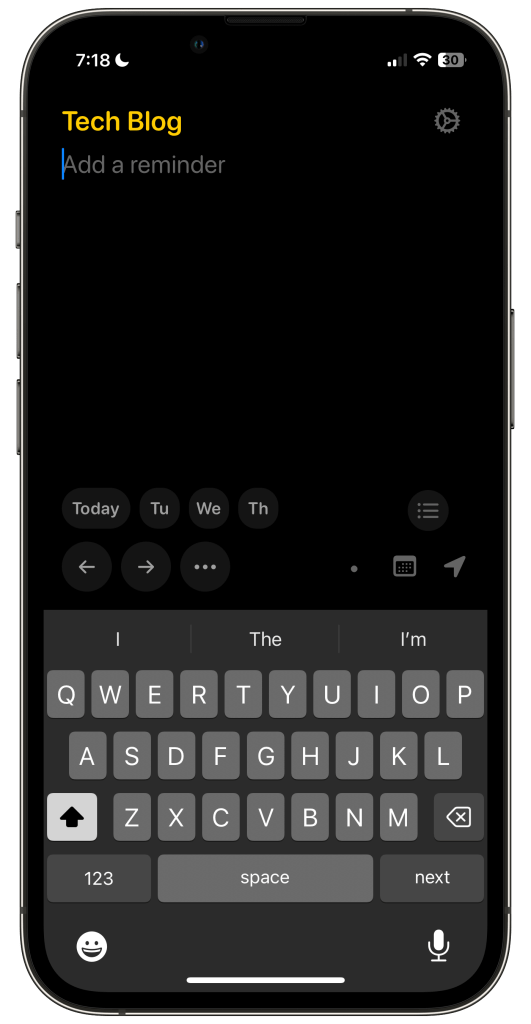
The user interface for this app is very straight forward: at the top of the screen is the name of the list that you’re entering a task into. To change lists, simply swipe left or right anywhere on the UI (that isn’t the keyboard) and you’ll work your way from list to list. Tapping on the list name will also bring up a list of all your lists so that you can choose one, though swiping between lists quickly becomes second nature.
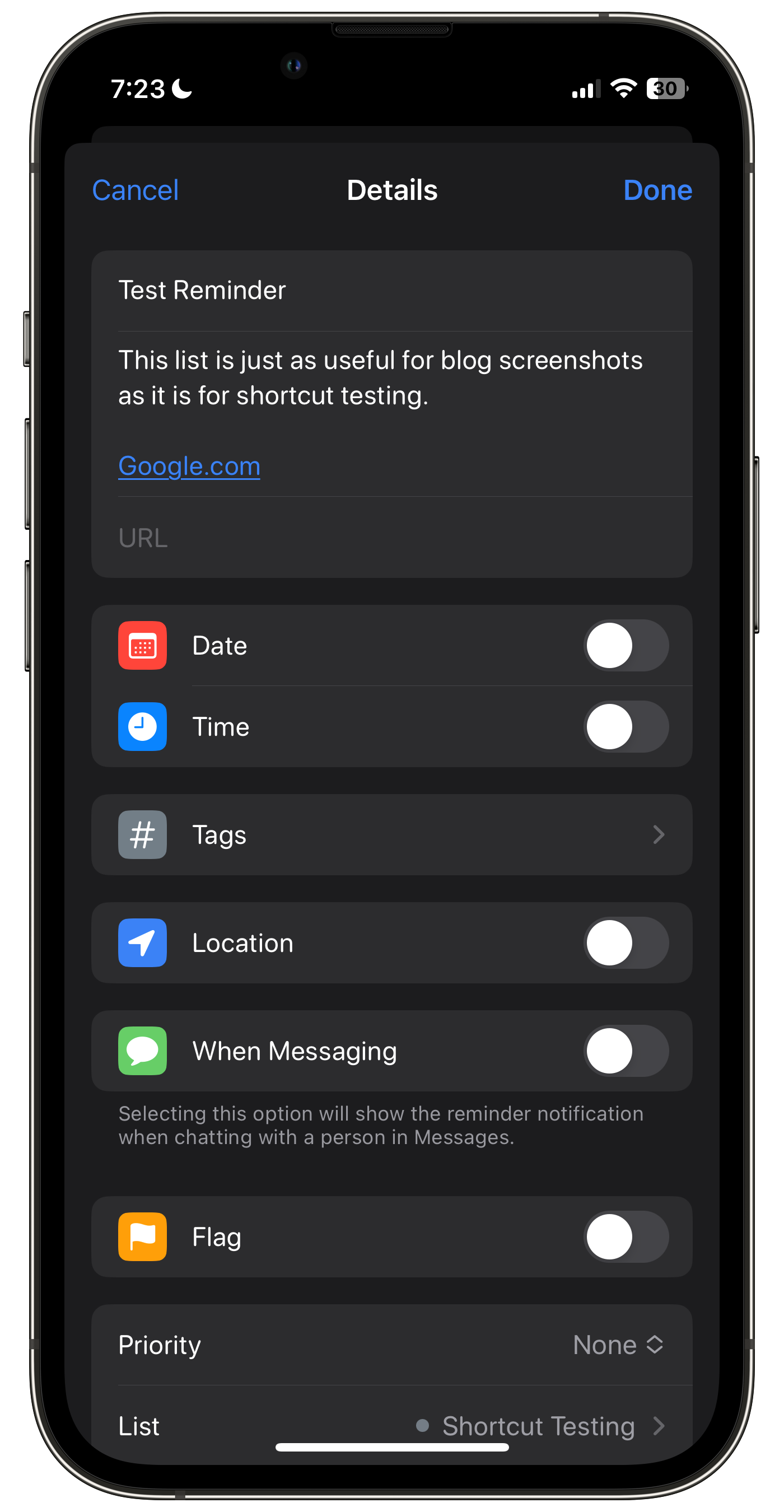
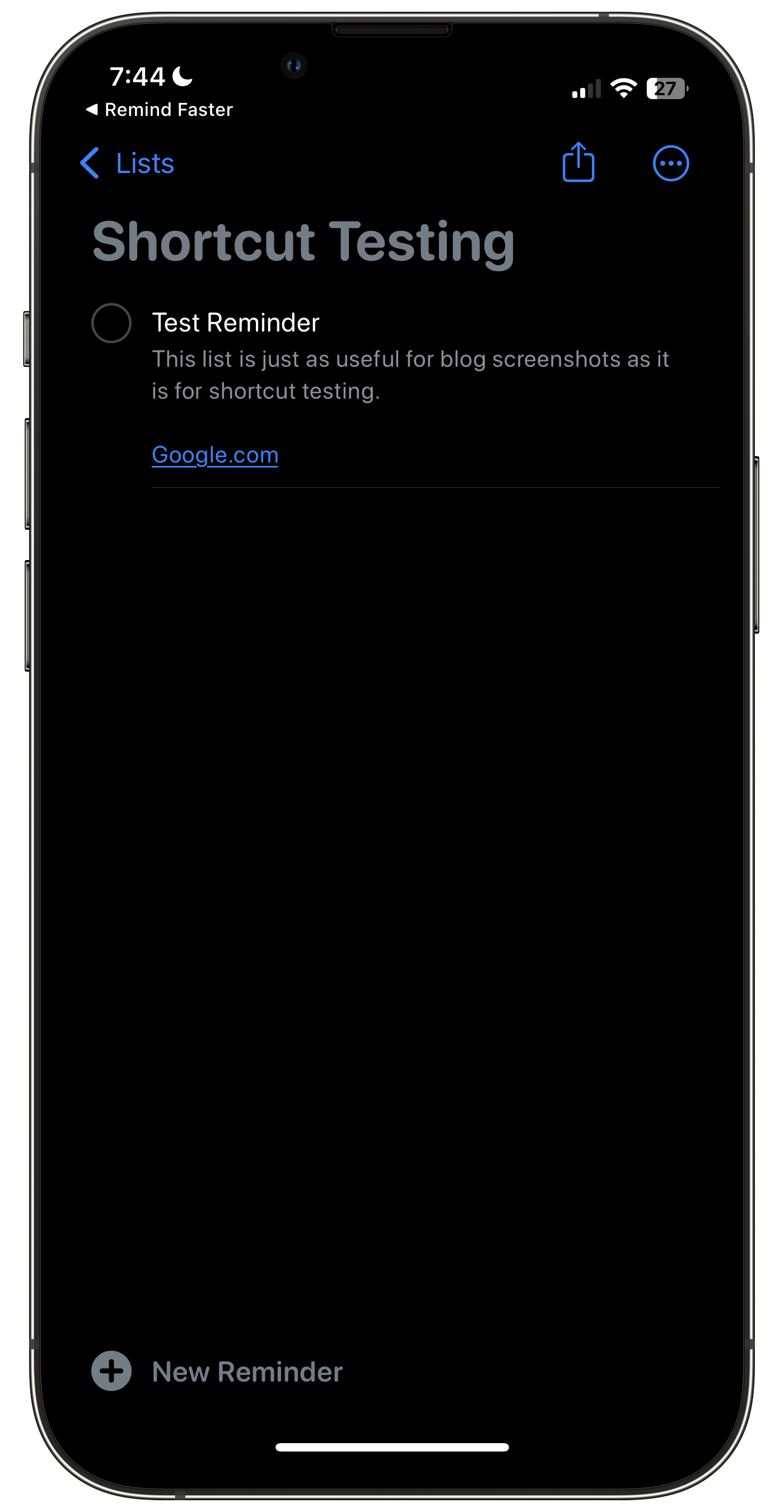
After entering a reminder title, there’s a section where you can add a note. You can put URLs into the note section and they will be hyperlinks inside the Reminders app, although they will not be in the URL section. I’ve wondered if a future update could parse a URL and move it from notes to URL, but honestly it isn’t that big of a deal since there is still an easy way to open the link in question.
Past that are are little pill buttons that allow you to quick set a due date for the reminder: today, or several days out. Also in this row on the right side of the screen is a shortcut to the Reminders app (which you can hide in settings.) Below that row is where times appear, though I have this disabled as I usually just prefer to set a date for a reminder to be due, as opposed to setting it to the minute. The arrows you see in my screenshot can be used to cycle through due dates and the ellipses button opens a date picker. The items on the right side of the screen in this row are a dot that can be used to cycle through priority, a button to toggle showing the time buttons, and a way to quickly add a location to a reminder, based on saved locations you have set up in the app’s settings.
There are some things that the app can’t add to reminders: tags, images, attachments, etc. This isn’t the fault of developer Nick Leith, however, as these are things that Apple hasn’t opened up to developers on iOS as of yet. In addition, you can run the app on Apple Silicon Macs, though there isn’t an easy way to swipe between lists. Using a combo of two and three finger swipes I was able to get it to sometimes change lists, but I didn’t find this consistent. In reality this wasn’t too big of an issue for me though, as I find doing basic task entry on macOS to not be nearly as cumbersome as it is on iOS, and if I really need to take advantage of this app, I’ll just pull out my phone which I don’t find to be that much of an issue.
The reality is that while this app does exist across the iPhone and iPad, the iPhone is really where this app shines and you’ll find the most utility from it by nature of it making the iPhone be able to really quickly set reminder parameters and enter them into the app.
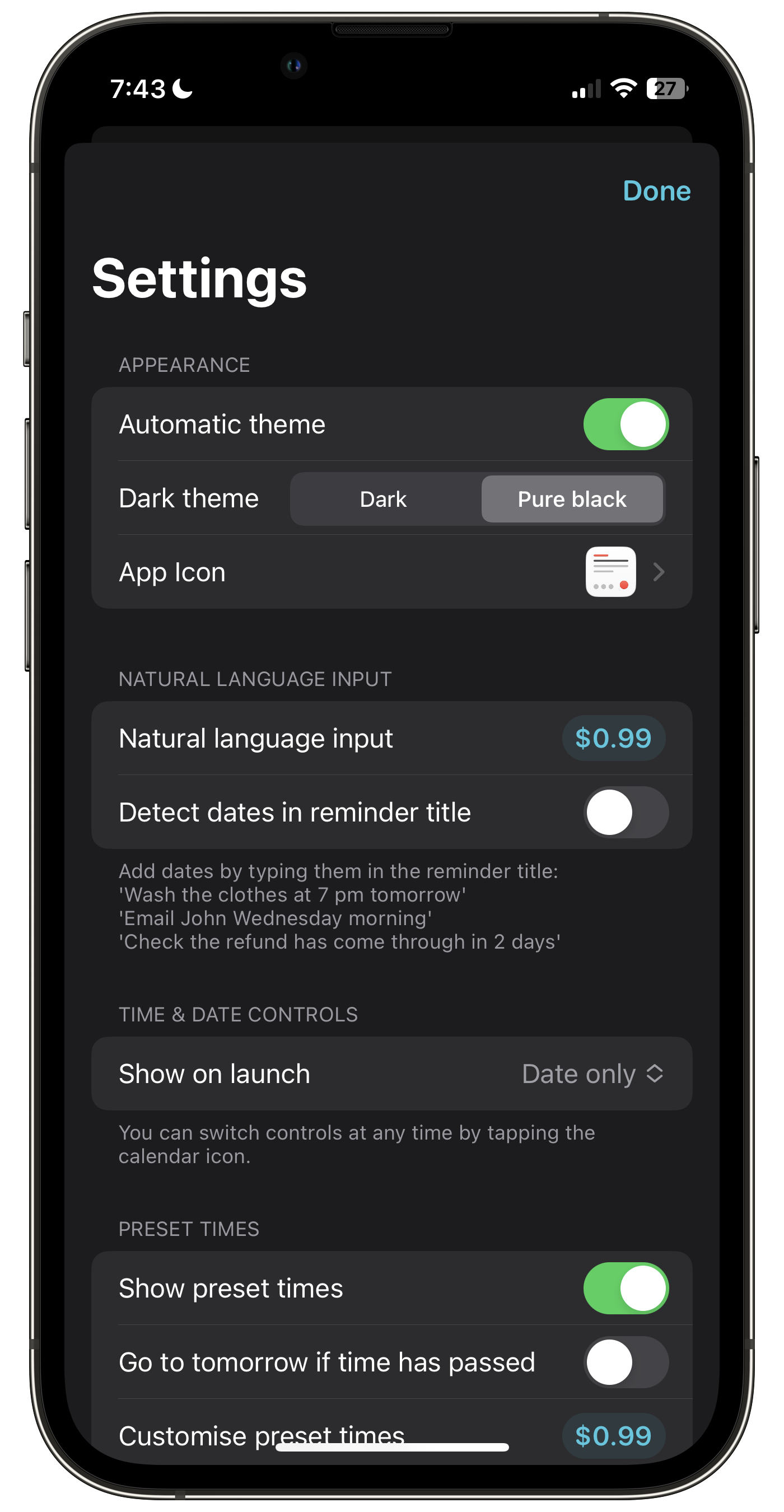
While the app is completely free to download and use, there are two optional in-app purchases for .99¢ USD. The first is for natural language detection in reminders while the other is for customizing the preset times. I haven’t purchased either of these due to my lack of need, but if your someone who does wish to take advantage of them, you have the option to buy just the features you want to add. I think that’s a great way for the developer to handle this app as it doesn’t force someone who only needs the free version of the app to access a fully functional set of tools, while those looking for me power can get get that as well.
If you’re a user of the stock Reminders app and you’re looking for a better way to get tasks onto their lists, this is an app that I would highly suggest checking out.
That about wraps it up for my showcase of the app Remind Me Faster for iOS. If you want to check the app out, you can get it for free in the App Store. If you’d like to keep the conversation going, comment down below with your thoughts on the app!

 Dan Stransky
One thought on “Remind Me Faster | App Spotlight”