A little over a year ago, I wrote about my iOS Shortcut for identifying music with Shazam and adding it to an Apple Music Playlist. In the time since I first shared that shortcut, a few things have changed.
The first was the release of MusicBox, by MusicHarbor and Play developer, Marcos Tanaka. MusicBox does for music what Play did for watching videos later on YouTube.
The second thing that changed was how I was using Shazam to begin with. When I first built my shortcut, it was built with the intention of identifying songs I hear that interest me and giving me a quick way to revisit them later. There’s two problems with that:
- I wasn’t going to that playlist nearly as frequently as I should have, meaning I was collecting this music but never actually listening to it.
- My shortcut was only built around identifying the song and then adding it to a playlist or not. If I wanted to identify a song and then act on it later, I had no option with my handcrafted solution.
The good news is that Apple knows that people will want to Shazam music sometimes just to know what that song is, while choosing to act on it later. In an update to iOS 15 (we’ve had so many that I can’t recall exactly which update it was), Apple added the ability to long press on the Shazam icon in Control Center, bringing up a list of music you’ve identified. This comes with it’s own set of issues. The two that I identified were:
- Trying to listen to a song from there was a nightmare. Tapping the song would open an app clip but then tapping listen on Apple Music would take me to an Apple Music registration flow, despite me having an active subscription to the service.
- There’s no Shortcuts connectivity. When you have a list of songs in there, there’s not a great way to get them out and that’s frustrating if I want to do some — anything — with them.
So that’s where Shazam v2.0 comes in. I’ve bored you with enough background; let’s dive into this shortcut and see what makes it tick.
Introducing Zam
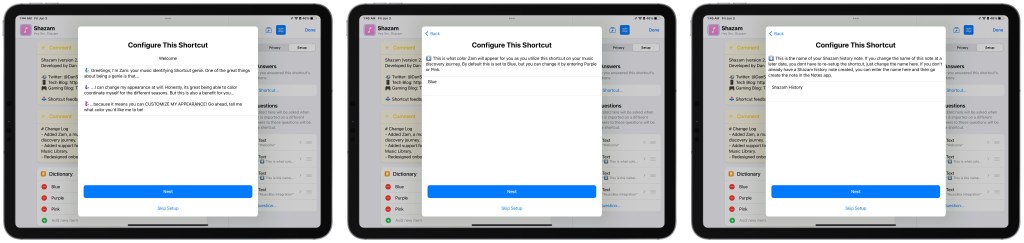
This wasn’t actually an intended part of the shortcut when I started working on it just a day or two ago, but as things were getting bigger and bigger, I wanted to add in a bit of personality to the interactions. There’s three Genie emoji available on iOS Blue (🧞♂️), Purple (🧞), and Pink (🧞♀️). After messing around with some ideas for how to let the user customize the genie available in the Shortcut, Zam was born.

The way I’m handling this is actually pretty neat: at the top of the shortcut is a dictionary with three keys (the colors listed above) with the corresponding genie as a value. During setup, you’re prompted to pick a color and enter it as a text item. This text item is then used to pick the corresponding genie and drop it into a bunch text boxes in the shortcut as a variable. If you ever want to change your color, say from Purple to Pink, all you have to do is go into the Shortcut editor and change the box related to genie color.
Is this integral to the operation of the shortcut? Absolutely not. But if I can give the user a chance to change their Genie color, why wouldn’t I?
Listening History
Adding some kind of listening history to this shortcut was actually the genesis of the whole 2.0 idea. Unless Apple decides to severely update how Shazams are handled, rolling your own solution is going to be your best bet.
Originally, I was going to use DataJar to do this, but I decided not to for, you guessed it, two reasons. One was that DataJar is an app that not everyone will already have or be using and I really wanted to try and handle this with a default action if I could. The second reason is that I was struggling to get that part configured properly. This is a shortcut I wanted to use sooner rather than later. To that effect, I may add in DataJar support in a later update, but for now what I came up with seems fine.
Notes.
Now don’t get me wrong, the Notes app is one that a lot of people, myself included, would like to see updated in iOS 16, along with a bevy of updated shortcuts actions, but fortunately, for a simple, quick to sync Shazam list, the current state of the app is acceptable. I would have preferred to have been able to pass in some formatted rich text, but my basic text I’ve passed in for now is just fine.
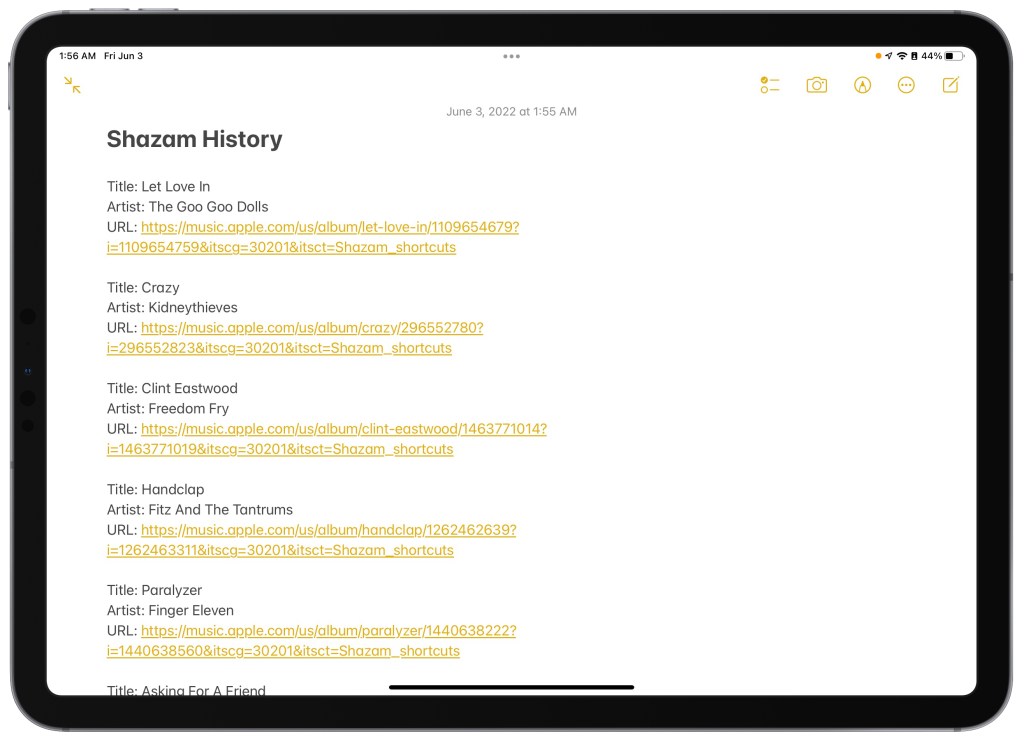
What I’ve done with this section is that immediately after identifying a song, the shortcut chucks the title, artist, and Apple Music URL into the Notes app. The reason I did this is so that if all you wanted was to know what the song was and who it was by, you have that information to refer to later. You will notice in screenshots that theres a button that comes up that is essentially a “do nothing with this information button”. The only reason its there is because of my own compulsions. You can tap anywhere on the screen to exit the shortcut once you know the song information if you don’t want to save it for later. If you do, you have not one, but two options.
Saving Music
Right now there are two things that you can do with a song once it has been identified and logged. The first is to add it to a playlist that you’ll choose during the setup flow. The second is to add the track to MusicBox.
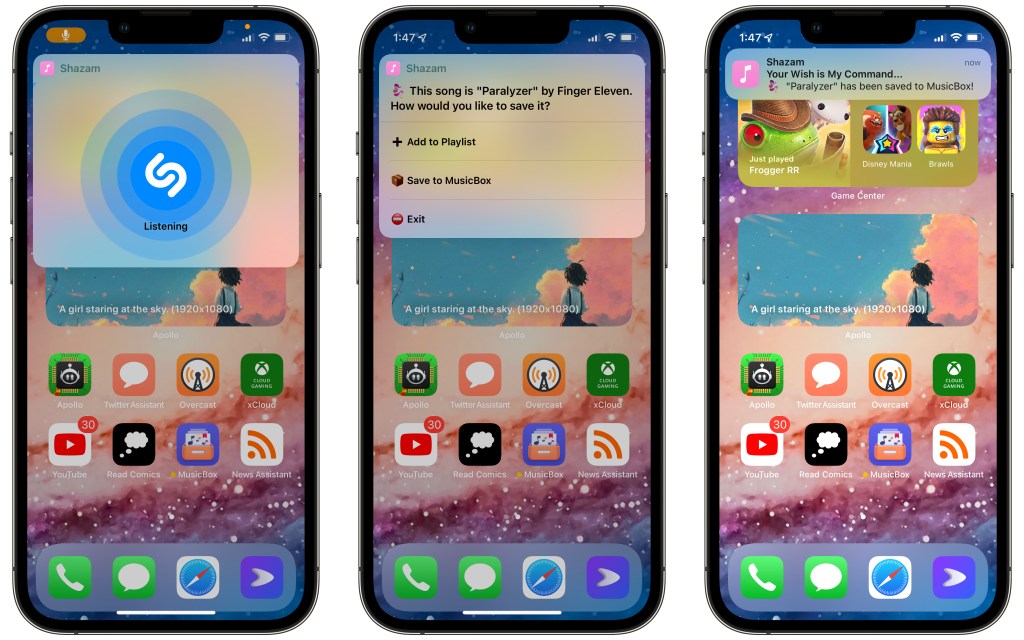
I did struggle for a bit with deciding how to share this shortcut. Much like DataJar, MusicBox is a third party app that not everyone is going to have. Because of my robust documentation, though, I decided to go ahead and leave these actions in tact. The two MusicBox actions will show as unknown (and I’d assume the shortcut will kick back an error if you choose Add to MusicBox when MusicBox is not installed). If I receive too much feedback about having both sets of actions in place, I’ll release a simplified version of this shortcut without the third party actions.
This also isn’t intended to be an ad for MusicBox, but it’s an app I was beta testing prior to release and if you’re someone who discovers a lot of new music, it is one of the best ways to keep track of what you will hopefully listen to one day.
When you run the Add to MusicBox action, you can have it automatically tag the track for you. I’ve opted to make this a setup variable so that you can use whichever tag you want. Personally, I use Shazam.
Feedback and Final Thoughts
If, like me, you’re looking for a great way to identify and collect music to listen to, this shortcut might be it. I’ve done some limited testing to make sure that everything is functional, but with a sample size of one, some things may slip through the cracks. I have a feeling I’ll be doing more development on this shortcut as time goes on so please, if you run into errors or questions, please don’t hesitate to ask or reach out.
The best way to get in touch with me is via my Twitter account. You can find me as @DanStransky. If you came here via the Club MacStories Discord server (or happen to also be a Club member), please feel free to reach out to me via Discord as well. If it weren’t for all the great work Federico does with Shortcuts, I don’t know if I would have had the ingenuity to come up with some of what I’ve done here. If I can take one moment to toot my own horn, I’m really, really pleased with what I came up with for the customizable genie.
With all that out of the way, there’s just one thing left to say:
If what I’ve written interests you and you’d like to take Shazam v2.0 for a spin, you can download it here: Shazam v2.0.

 Dan Stransky