
Sticker Doodle
Price: Free/$1.99 IAP
Developer: Charles Etzle
Link: App Store
The other day I was looking at 9to5Mac’s RSS feed when I stumbled upon an interesting story, spotlighting an app called Sticker Doodle. Naturally any app that promises to let me turn my photos into iMessage stickers is something that I needed to check out.
The app itself is available for free on the App Store, though there is a $1.99 in-app purchase available. As a free user, you’re limited to creating 5 stickers, while the IAP unlocks unlimited stickers. After making a couple of stickers myself, I decided to go ahead and unlock unlimited stickers, as this is an app I can see myself getting a lot of use out of.
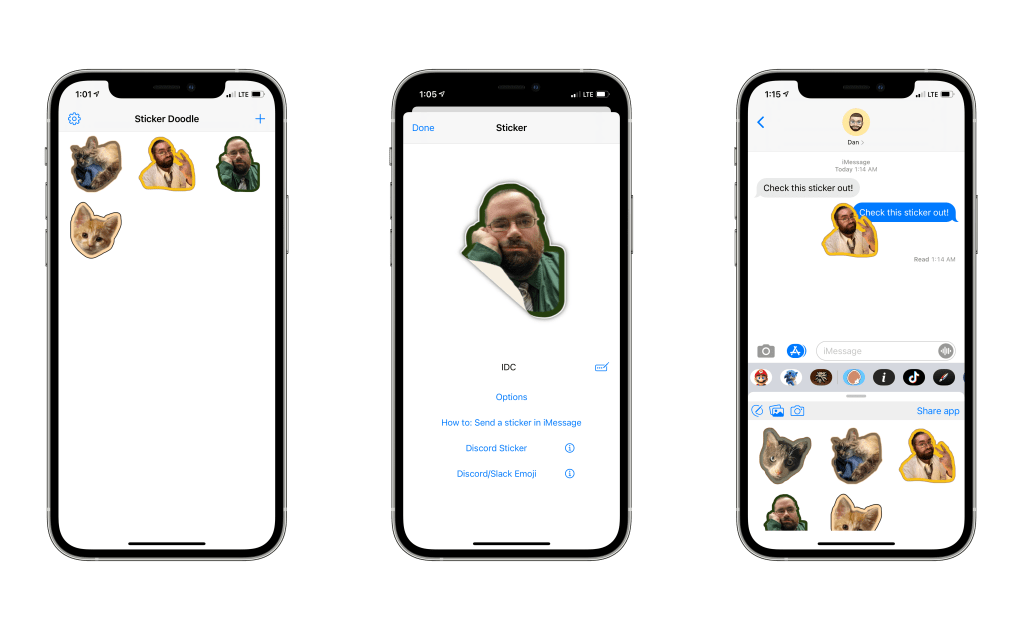
Visually, the app is very simple and straightforward. The app opens to a screen showcasing all of the stickers you’ve made, along with a plus button in the corner that lets you create a new sticker either from a photo, the camera, or a drawing. While PencilKit is used to give the drawing canvas a familiar look for those familiar with Apple’s Markup tools, I’m not someone who was born to draw…so I decided to stick to making photos of myself and cats that are in my photo library.
Turn Your Photos Into Stickers
Making a sticker from a photo is pretty straight forward.
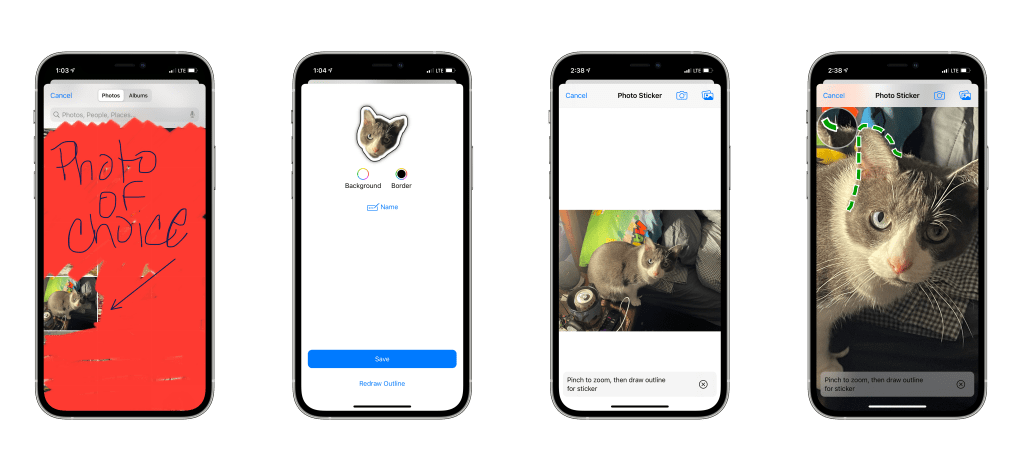
- On the main page, where you can view your entire sticker collection, you simply tap the plus button in the upper right-hand corner, and choose how you would like to make your sticker. In this case, we’re going to go with the “Photo” option.
- This takes you to the iOS photo picker, where you can choose any photo you have in your library.
- At this point, you’re taken into the canvas, where you can zoom in to the part of the photo you want to make into a sticker and draw an outline. At this time, drawing the outline is all or nothing, if you mess it up, you can redraw it, but if your finger comes up, it will assume you’re done. I’ve looked at the developer’s Twitter feed and it does appear that he’s looking for an alternative, but decisions are still being made there.
- Once your sticker is created, you can give it a name and choose outline and background colors.
Once that’s done, all that’s left is to send your sticker to someone in iMessage. There’s a helpful tutorial in the app, but the short version is to find the Sticker Doodle app in iMessage, tap it, and then drag your sticker up to whatever message you’d like to attach it to.
Sticker Collections and a Share Extension
Update 9/4/21: The official Twitter account for Sticker Doodle has responded to this section with the following tweet:
Two features that I think this app could use in the future are Sticker Collections and a Share Extension.
As it currently stands, all of your created stickers — be they photos or drawings — go into a single bucket. Considering I’m making stickers of myself, six cats, as well as miscellaneous aspects of geek culture, it would be great to stick each of these into their own collection for easy access. I can see how if I make stickers with this app for long enough, it’s going to get out of hand quickly.
As for a share extension for the photos app, I have what I would consider to be a fairly decent sized photo library, so if I’m going through old photos and I find one that I would like to make a sticker of, it would be fantastic to be able to hit the share button, tap the Sticker Doodle icon, and get to work.
Both of those features are hopes for the future, though. As the app currently stands, I still think it’s a great app to download from the App Store and is well worth it to get, especially if you like to use stickers in iMessage like I do.
Want to keep up on everything I’m creating around the web? Click here to sign up for my weekly newsletter That Jersey Gamer Weekly where I share content from both my blogs, miscellaneous writings that don’t make it into posts, and some of my favorite tweets I’ve sent in the last week.

 Dan Stransky