On this week’s episode of the podcast AppStories, Federico and John were talking about the different discovery, utility, and playback apps that they use for music, and there was a section of the show that I wanted to comment on.
At around 24:23 in the show, they start talking about the app Shazam, which can identify music playing around you in the real world. While I did find it interesting to hear how the AppStories crew uses Shazam, I figured this would serve as the perfect springboard to also share how I’m using Shazam, since my method is actually different from both of theirs.
Surprisingly, Federico hasn’t built a shortcut for this, but I actually have.
What it Does
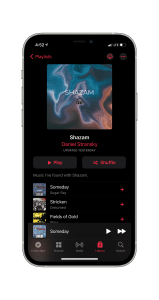
This shortcut is actually a pretty simple one. When you install it, there’s one setup question that it asks you: what playlist do you want to save your music to? My playlist is just called Shazam at the moment, but you can call yours anything you want. The only caveat to this is that the playlist needs to exist in your Apple Music library already. I may mess around with building an updated version using some tools from Toolbox Pro to create a playlist if there isn’t one, but I don’t have any immediate plans to experiment with that. If I do update it, however, I will be sure to post an updated link right below this paragraph.
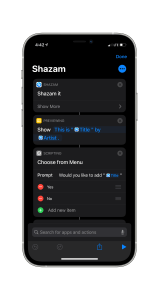
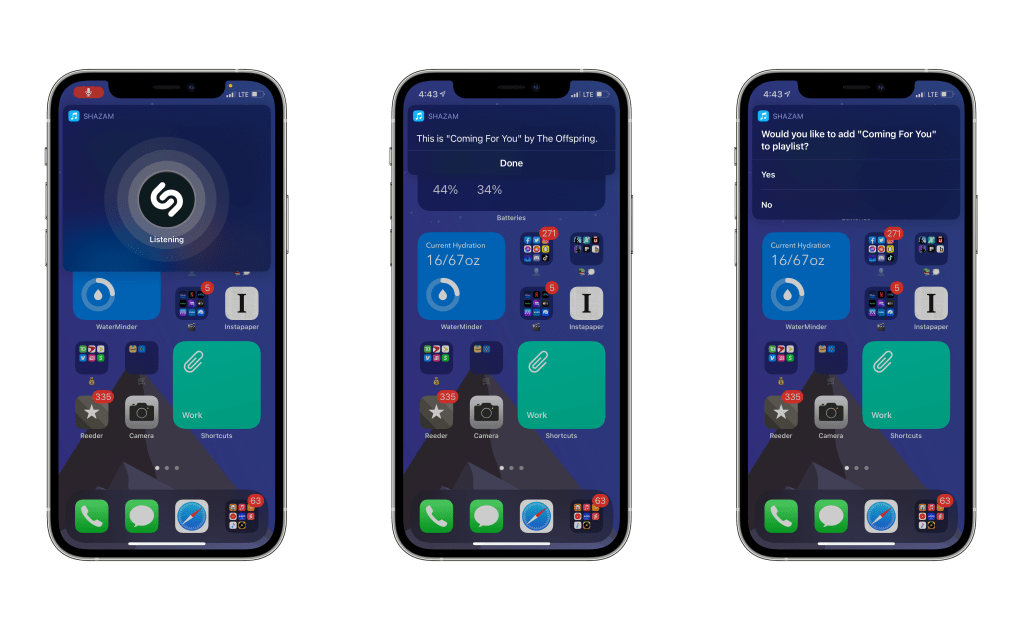
Once the shortcut is configured, it’s time to go off to the races. I have it set on my iPhone 12 Pro to a triple back tap to trigger it. Once you run the shortcut, it fires up Shazam to listen to figure out what’s playing, followed by an alert telling you “This is [Title] by [Artist].” Once you dismiss that alert, you get a single menu choice: “Would you like to add [Title] to playlist?” Choosing “Yes” adds it to your selected playlist, along with a notification that it’s been successfully added, while “No” ends the shortcut.
I opted to build it this way because the other options just didn’t work for me. Using Music Recognition is great if you just want to know what’s playing, but don’t want to act on it, while the Shazam app (which admittedly, I haven’t had installed in years) automatically dumps everything into a playlist. I wanted something that had just a hair more control.
Installing the Shortcut
If you’d like to install my Shazam shortcut that I use, there’s a link above. Alternatively, just click here.
If you’re unfamiliar with how to install external shortcuts, here’s a great article from Matthew Cassinelli about how to get started.
Before you go, if you’d like to learn a little more about how I manage my music consumption on my Apple devices, here’s a post I wrote about tracking new release with MusicHarbor!
What apps and shortcut are you using to listen to music on your iPhone, iPad, and Mac? Let me know down in the comments below! Maybe you’ll have a cool new app for someone to discover!

 Dan Stransky
One thought on “How I Shazam Music on iOS | Shortcuts Workflow”