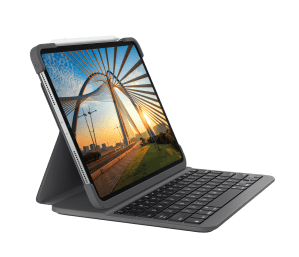
I love my 2020 iPad Pro. Last year, I decided to upgrade the 9.7″ iPad Pro that I’d been using for almost the last four years as my daily tablet to the new 11″ 2020 model. Between the tablet, the pencil, and a keyboard folio, it’s been a bit pricey, but I don’t regret it. The iPad Pro is a great device for both consuming content and getting productivity work done. More and more frequently, I find myself turning to it, and not my MacBook Pro, to get my tasks done. [Note: I wrote this review prior to getting an M1 MacBook Pro. Most of what I say stands, though my frequency of using my MacBook has increased, due to no fault of this keyboard, but rather the great performance of the M1 processor for long days.] That doesn’t mean that I never use my MacBook anymore, just that it’s often my second choice for creating.
The one thing that I learned very early into my time with the latest iPad Pro is that if you want to get any level of actual productivity achieved (especially if you do a lot of writing) is that a keyboard is a must. I won’t bore you with my journey to pick a keyboard for my iPad as it involved a lot of research via YouTube, Reddit, and a variety of other online resources. When the dust from that settled, I decided to go with the Logitech Slim Folio Pro. There were a few things that led me to choose this model:
- It has real keys. This was another important factor to me. Apple makes a very keyboard folio for the iPad Pro but I can’t stand the fabric keys on it. Every time I’ve tried a demo unit in stores, I’ve never found myself able to comfortably type on it — that’s a pretty big issue when the majority of what I’m writing are blog posts and I need to be able to write them at least somewhat comfortably. That being said, I know that Apple’s keyboard is good, but not liking the keys is very much a personal preference. Maybe I’d change my stance if I was using the keyboard every day and had time to get used to is, but that’s not an endeavor I wanted to invest in at the time.
- The price tag is very reasonable. Ideally I wanted to spend under $100 on a keyboard case for the iPad but I knew that was a stretch. Apple’s best option, the Magic Keyboard, has a price tag of $350 — at that point, spending $120 on a keyboard felt a whole lot better.
With that out of the way, what do I actually think of the keyboard?
Short answer: I really like it! I’ve been using it for a while now and have written the majority of my blog posts from the better part of the last 8 months or so on it. One thing that I really like about it is that there’s no proper power button. Instead, magnets in the case cause the keyboard to automatically activate and connect when you put it into writing position.
I don’t hit the 70 WPM that I can on my MacBook, but that’s alright because the overall typing experience is pretty great. I also feel like the case would give my iPad a decent amount of protection if I were to drop it (though this is something that I never intend to actually test for obvious reasons). The reason for my hypothesis is that there’s four rubber bumpers around the edge that are pretty substantial in thickness.
In fact, the case does have a pretty substantial size overall. From what I can tell, it’s pretty sturdy and it’s managed to keep my iPad from bending when it’s in my backpack (though I do try to be careful how I pack my iPad). That bulk is a double edged sword when it comes to content consumption, however. There’s a game I love to play called Grindstone that you can find on Apple Arcade. The way I’ve taken to usually playing the game is on my iPad with my Apple Pencil. It’s such a great experience. Sometimes, the case can be a bit much to hold with my left hand so I do pop the iPad out.
Overall, getting the iPad in and out of the case isn’t too difficult, but it is a hair or two harder than just pulling the iPad off of that $350 magnetic case that Apple makes. I wouldn’t cite that as a fault, though, as most keyboard cases are going to have some bulk to them. There is a part of me that would love removing the keyboard to be as frictionless as pulling the iPad from a few magnets, but unless a proper folio that used a mechanism like that came along, I think this is going to be one of the better designs in terms of holding the iPad.
The two biggest complaints I have about the case are about the space bar the…”comfort” factor.

I’ve been using 10FastFingers a few times a week to try and up my typing speed and one thing I’ve realized about the keyboard is that the space bar is very sensitive. When I’m on a roll with my typing, I often find that I mange to hit it (I think) with my left thumb, which is funny, because the way I generally type on my MacBook is with my right thumb basically resting on the space bar and I almost never accidentally trigger it. This is something that I never really thought about until I was writing this review and needed to contextualize it for review purposes. For a little more context, my left thumb hangs out over the space bar, but usually too far back to trigger it. This issue is something that is probably highly localized to my specific typing style so I don’t think I would put a lot of weight to that issue, though it’s still worth mentioning.
[Note: Present day Dan here again. In the time that I’ve been using this keyboard since initially writing this review, I’ve found the my typing style has changed a bit, exclusively when using this keyboard. I don’t know if that’s a good or bad thing but i do find that I’m still efficient when typing and run into the space bar sensitivity issue a lot less.]
The other con that I tend to find with this folio is the size. I’ve already talked about how it can be bulky, but the bigger issue to me is the size that it lacks. Because this product doesn’t have a trackpad (unlike the Slim Folio Touch) there is no palm rest. That means that you go from keyboard to hard wooden desk real fast. This is an issue when I’m at a desk, but when I’m lounging on the couch or in bed, it’s much less of an issue, as my hands wind up resting on my body, which is a lot more forgiving. If you plan to use this all day at a desk, you may want to consider pairing it with a small wrist rest. Still, I’ve found that I can write out my day summary entries in Day One and blog posts on it without much discomfort. If I was spending eight hours a day on it writing emails, that may be a different story.
Overall, this is a keyboard I would recommend due to the quality and price compared to other options, but if have bigger hands or are going to be using this non-stop during a full work day, you may want to consider the Slim Folio Touch, which includes a trackpad and palm rest. I haven’t tried that one myself, but I imagine that would clear up at least one of the issues I do have with this model. That being said, none fo the cons are enough to make me regret picking this up and this is a folio that I will be continuing to use into the future. I don’t see myself swapping this one out anytime soon.
What’s your keyboard of choice for Apple’s “all-screen” iPad Pros? Sound off down in the comments below!

 Dan Stransky